


01
Sep
A practical troubleshooting guide for operators whose printed output looks duller, warmer, or noticeably different from the design file on screen — the most common color complaint in eco-solvent printing.
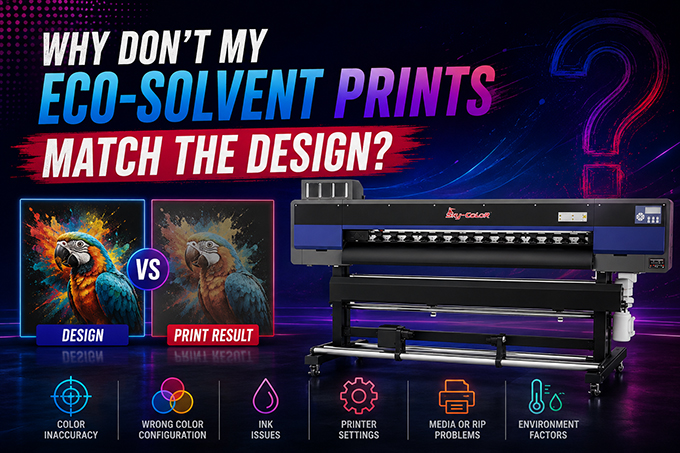
QUICK ANSWER: Color mismatch between your screen and your eco-solvent print is almost always caused by one of three things: a missing or wrong ICC profile for your ink/media combination, "double color management" where both your design software and RIP software are trying to correct color at the same time, or an uncalibrated monitor showing you a brighter, bluer version of the color than the printer can physically produce. Fix the ICC profile first, disable double color management second, and calibrate your monitor third — in that order, since fixing the profile solves most cases on its own.
Few things frustrate a print shop more than a client rejecting a job because "the color is wrong" — especially when the file looked perfect on screen. This isn't usually a printer defect. It's almost always a color management setup issue, and it's fixable in most cases without touching the hardware at all. Here's how to diagnose and fix it properly.
| Cause | What It Looks Like | How Common |
|---|---|---|
| Missing/wrong ICC profile | Colors look flat, dull, shifted warm or cool overall | Most common cause |
| Double color management | Colors look over-saturated or unpredictably shifted | Very common with certain RIP + design software combos |
| Uncalibrated monitor | Screen looks fine, but print always looks darker/duller than expected | Common, but often overlooked |
| Wrong printhead selected in RIP | Colors are visibly off across the whole print | Less common, but easy to miss |
| Media type mismatch in profile | Colors shift when switching between vinyl, banner, canvas | Common when switching substrates without updating settings |
Step 1 — Confirm the Correct ICC Profile Is Loaded
Open your RIP software (Maintop and similar RIP programs are standard for eco-solvent printers) and go to the color management or ICC profile section. Confirm the profile matches both your exact ink type and your current media — vinyl, banner PVC, canvas, and photo paper all absorb ink differently, so a profile built for one will produce inaccurate color on another. If no profile is selected, most RIP software silently falls back to a generic default profile, which is one of the most common causes of color complaints.
While you're in there, also confirm the printhead type is set correctly (e.g., I3200 vs. an older or different head model). If the wrong printhead is selected, color output will be inaccurate across the entire print, not just in specific tones.
Step 2 — Turn Off Double Color Management
If both your design software (like Photoshop or Illustrator) and your RIP software are trying to manage color at the same time, the result is unpredictable shifts that look nothing like either program's preview. Pick one system to manage color — for most eco-solvent shop workflows, that should be the RIP software — and set the design software to pass color through without additional correction ("No Color Management" or equivalent, depending on your software).
Step 3 — Calibrate Your Monitor
Even with a perfect ICC profile and clean workflow, an uncalibrated monitor can make you think there's a print problem when there isn't one. Screens are typically brighter and more saturated than physical print output, so what looks accurate on an uncalibrated display can look duller once printed — even though the printer is doing exactly what it was told. A basic hardware colorimeter and monthly recalibration is enough for most shops; it doesn't need to be an expensive setup.
Step 4 — Run a Test Swatch Before Full Production
Before committing to a full production run, especially on a new media type or a large solid-color job, print a small test swatch and compare it against the design file in consistent lighting. This catches profile mismatches and environmental drift before they turn into a wasted roll of expensive media.
Step 5 — Rule Out Environmental and Machine Factors
If color still drifts between jobs even with a correct profile, check for environmental instability — eco-solvent printers are sensitive to temperature and humidity swings, and inconsistent shop conditions can cause the same file to print slightly differently week to week. Also confirm you're running a clean nozzle check before critical color-sensitive jobs, since even a few missing nozzles can shift how a color block reads overall.
A Quick Pre-Production Color Checklist
Frequently Asked Questions
Why does my print look duller than what I see on screen?
This is usually a monitor calibration issue, not a printer problem. Monitors display a wider, brighter color range (RGB) than what a CMYK inkjet system can physically reproduce, so an uncalibrated screen will almost always look more vivid than the final print can match.
Do I need a different ICC profile for every type of media?
Yes. Vinyl, banner PVC, canvas, and photo paper all absorb and reflect ink differently, so using one "universal" profile across different media types is one of the most common causes of inconsistent color between jobs.
Why did the same file print a different color today than last week?
This usually points to either environmental drift (temperature/humidity changes affecting ink behavior) or a nozzle check issue, rather than the file or profile itself. Run a nozzle check and confirm your shop's environment is within the recommended range before reprinting.
Can two identical printer models produce different colors?
Yes — even the same printer model can show slight color variation due to factory tolerances and wear over time. A profile built on one unit will get you close on another, but for critical color-matching work, building or fine-tuning a profile on your specific machine gives more accurate results.
Is this a hardware problem or a software problem?
The vast majority of color mismatch complaints are software/workflow issues — ICC profiles, double color management, or monitor calibration — not a defect in the printer itself. Hardware is worth investigating only after ruling out these setup issues first.
Still seeing color issues after checking your profile and settings?
Stormjet's technical support team can walk you through your specific RIP software setup and help you build or troubleshoot ICC profiles for your exact ink and media combination.
Contact Our Support Team → https://wa.me/8617700639356