


Preparing artwork for UV printing involves more than saving a design as a PDF or JPEG. Incorrect dimensions, low-resolution images, missing white ink layers, or unsuitable RIP settings can lead to unexpected colors, misplaced graphics, wasted materials, and unnecessary reprints.
Whether you print acrylic signs, promotional products, transparent films, decorative panels, or other compatible materials, checking your artwork before production helps reduce errors and keep jobs running smoothly.
Quick Answer: What Should You Check Before UV Printing?
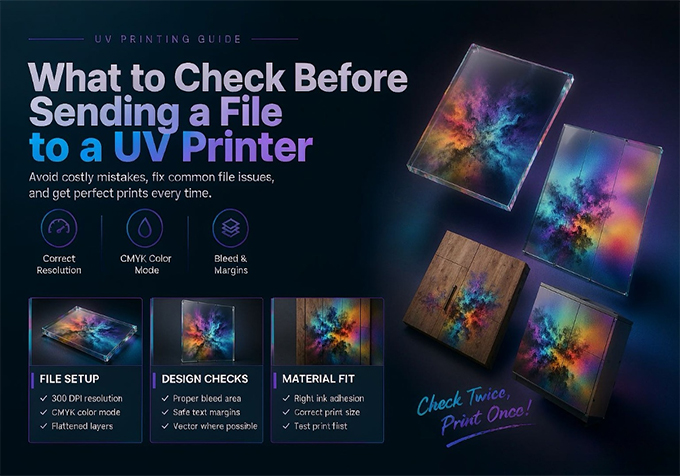
Before sending a file to a UV printer, confirm these eight points:
- Correct artwork dimensions and print scale
- Sufficient image resolution for the final viewing distance
- Correct fonts, outlines, and linked images
- Proper color mode and color management
- Correct transparency and background settings
- White ink and varnish layers, if required
- Bleed, margins, and artwork positioning
- Compatible file format and RIP software settings
Important: Exact requirements depend on your printer, RIP software, material, and intended application. Always confirm the workflow with your equipment supplier before production.
1. Check the Artwork Dimensions and Print Scale
Incorrect artwork dimensions can cause a design to print at the wrong size or in the wrong position. This is especially important when printing panels, signage, transparent films, or multiple items in one job.
Before exporting the file, check the following:
- Final size: Set the artwork to the intended finished dimensions whenever practical.
- Units: Confirm whether the design software uses millimeters, centimeters, or inches.
- Print orientation: Check landscape versus portrait orientation and the direction in which the material will feed.
- Safe margins: Keep important text, logos, and design elements away from edges where trimming or positioning errors may occur.
- Actual print area: Confirm that the design fits the usable printing area of your machine.
For example, if a sign must finish at 600 × 400 mm, make sure the artwork, output scale, and production layout agree with that size. Do not assume that a file will automatically print at the intended dimensions.
For multiple items, also check the spacing between copies and the overall layout. Efficient nesting can help reduce material waste, but the final arrangement must remain within the printer's usable area.
2. Choose the Right Image Resolution
Image resolution affects the appearance of photographs, small text, fine lines, and detailed graphics. Enlarging a low-resolution image does not create missing detail, even if the file's pixel dimensions are increased in design software.
For raster artwork, consider the following when preparing a file:
- Use high-quality original images instead of small images downloaded from websites or messaging apps.
- Evaluate the image at its intended print size, not only while zoomed in on a monitor.
- Pay extra attention to small text, thin lines, product labels, and fine graphic details.
- Avoid repeatedly resizing and exporting the same image, which may reduce image quality.
The appropriate resolution depends on the final print size, viewing distance, image content, print mode, and output workflow. A large-format sign viewed from several meters away may not need the same image detail as a small promotional item inspected at close range.
Practical tip: Ask your printer supplier for recommended artwork settings for your typical applications. Test a representative file before starting a large production run.
3. Check Fonts, Vector Objects, and Linked Images
Artwork may look correct on your computer but change when opened on another workstation or processed by RIP software. Missing fonts, unsupported effects, and broken image links can all affect the final output.
Before exporting:
- Convert text to outlines when appropriate, especially when the recipient may not have the original fonts.
- Embed linked images or package them correctly with the project file.
- Check clipping masks, transparency effects, gradients, and overprint settings.
- Inspect fine lines and small text at the actual output size.
- Keep an editable original file in case revisions are needed.
Converting text to outlines can prevent font substitution, but it also makes text less convenient to edit. Keep a separate editable copy before making this change.
4. Confirm Color Settings and Color Expectations
Colors displayed on a monitor do not always match printed colors. Screen brightness, display calibration, color profiles, ink characteristics, substrate color, and curing conditions can all influence the result.
For more predictable output:
- Use consistent color settings throughout the design and production workflow.
- Confirm the recommended file color mode and ICC profile workflow with your RIP software supplier.
- Avoid assigning multiple conflicting color profiles without understanding how the RIP will interpret them.
- Check brand colors, neutral grays, skin tones, and gradients on a representative sample.
- Use a test print when color accuracy is critical.
CMYK artwork is common in commercial printing, but the best setup depends on the printer, RIP software, ink configuration, and production requirements. Converting every file to a particular color mode without checking the workflow is not a universal solution.
For jobs involving transparent or colored materials, remember that the substrate itself can influence the perceived color. A white underlayer may be necessary when the design requires more opacity or a consistent visual appearance.
5. Check Transparency and Background Settings
Transparency is particularly important when preparing artwork for clear film, transparent panels, and designs that use white ink selectively.
Ask these questions before sending the file:
- Should the background remain transparent, or should it print as a solid color?
- Are transparent areas intentional, or are they the result of an editing mistake?
- Will the artwork be viewed from the front or through the back of a transparent material?
- Does the selected print workflow require mirrored artwork?
- Will a white underlayer be needed to make colors visible on the chosen substrate?
For transparent media, the order of printing, viewing direction, and white ink configuration can change the appearance of the finished design. Confirm these details with the production operator before printing.
Common mistake: A white background visible in a design application may be part of the artwork rather than genuine transparency. Check the exported file and its preview in the RIP software before production.
6. Prepare White Ink and Varnish Layers Correctly
Some UV printing applications use white ink to create an opaque base on transparent or dark materials. Varnish may be used for selected gloss effects, surface accents, or decorative finishes when supported by the printer and ink configuration.
These effects require more than simply choosing white or varnish as a color in the design software. The artwork must be prepared in a way that the RIP software and printer can interpret correctly.
White Ink Layer Checklist
- Confirm whether the job needs a white underlayer, an overprint, or another supported white ink arrangement.
- Check that the white layer is assigned to the correct spot color or channel according to the RIP workflow.
- Verify that the white layer aligns with the intended color artwork.
- Inspect small gaps, unwanted white borders, and areas where white ink should not appear.
- Confirm whether a choke or spread adjustment is needed to reduce visible edges caused by slight registration differences.
Varnish Layer Checklist
- Confirm that the printer supports varnish and that the required ink channel is configured.
- Identify the exact areas that should receive varnish.
- Check the spot color name and layer assignment required by the RIP software.
- Review the artwork for unintended varnish coverage or missing areas.
- Test the effect on the actual material before approving a full run.
White ink and varnish naming conventions vary between RIP systems. Do not assume that a layer named “White” or “Varnish” will work automatically. Follow the software and printer manufacturer's specific instructions.
7. Check Bleed, Margins, and Artwork Positioning
Artwork placement errors can lead to uneven borders, incomplete coverage, or designs that do not align with the intended product area.
Before production, confirm:
- Bleed: Add bleed when the finishing process requires artwork to extend beyond the final cut line.
- Safe area: Keep essential design elements away from edges and trimming zones.
- Registration: Confirm alignment requirements when printing multiple layers or working with pre-cut materials.
- Jig or template: For repeatable flatbed jobs, check that the artwork matches the fixture or positioning template.
- Mirroring: Confirm whether the design needs to be reversed for the intended printing method or viewing direction.
Bleed is not necessary for every UV printing job. Its use depends on the product, finishing process, and whether the design needs to extend beyond the final edge.
8. Select a Compatible File Format and Check RIP Settings
Different RIP applications support different file formats and handle transparency, spot colors, and special ink channels in different ways. Stormjet product specifications list formats such as TIFF, JPEG, and PDF for certain models, but you should verify compatibility with your specific printer and software version.
Common formats used in printing workflows include:
| File Format | Typical Use | What to Check |
|---|---|---|
| Layouts, vector artwork, and mixed content | Fonts, transparency, embedded images, and spot colors | |
| TIFF | High-quality raster images | Resolution, dimensions, color mode, and transparency support |
| JPEG | Photographs and flattened images | Compression artifacts, image quality, and background handling |
This table is a general guide, not a guarantee that every format supports every special ink function. Check the documentation for your actual RIP software.
After importing the artwork, review the RIP preview and confirm:
- The file opens without missing elements or unexpected changes.
- The output size and orientation are correct.
- The selected media profile and color settings match the job.
- White ink and varnish channels are mapped correctly, when required.
- The print mode, layer order, and output settings suit the application.
- The design is positioned correctly within the printable area.
9. Run a Test Print Before Full Production
Even a correctly prepared file can produce unexpected results because of material characteristics, print settings, or equipment conditions. A small test can reveal problems before they affect an entire batch.
A useful test workflow is:
- Inspect the artwork and RIP preview.
- Confirm the material, print orientation, and positioning.
- Check nozzle status and other machine conditions according to the operator's maintenance procedure.
- Print a representative sample using the intended production settings.
- Evaluate color, fine details, alignment, opacity, and special effects.
- Approve the sample before continuing with the full order.
For critical applications, also evaluate the finished print under appropriate lighting and check any required durability or adhesion criteria using a suitable test procedure.
UV Printing File Preparation Checklist
Use this checklist before releasing a job to production:
| Check | Confirmation |
|---|---|
| Artwork size | Final dimensions, scale, and orientation are correct. |
| Image quality | Images are sharp enough for the intended output. |
| Fonts and images | Fonts, links, and graphic effects are handled correctly. |
| Color settings | The color workflow matches the RIP and production requirements. |
| Transparency | Background and transparent areas behave as intended. |
| White and varnish | Special ink layers are correctly assigned, if required. |
| Positioning | Margins, bleed, registration, and placement are correct. |
| RIP preview | The imported job matches the approved artwork. |
| Test print | A sample has been checked when required. |
Frequently Asked Questions
What file format is best for UV printing?
There is no single best format for every job. PDF can be useful for vector layouts and mixed artwork, while TIFF and JPEG are common for raster images. Choose a format supported by your RIP software and confirm how it handles transparency and special ink channels.
Do I need to convert my artwork to CMYK?
Not automatically. The correct color workflow depends on the design application, RIP software, ICC profiles, ink configuration, and material. Follow the recommended workflow for your printer rather than converting files without checking.
How do I prepare a white ink layer for UV printing?
Prepare the white ink layer according to the naming, spot color, or channel requirements of your RIP software. Check its position relative to the color artwork and confirm the intended underprint or overprint arrangement before production.
Should I mirror artwork before UV printing?
Only when the application requires it. Some transparent-media jobs or second-surface printing workflows may require mirrored artwork, while others do not. Confirm the viewing direction and print sequence before reversing the design.
Why does my printed result look different from the screen?
Displays emit light, while printed output reflects light from ink and the substrate. Differences in color profiles, screen calibration, material color, ink coverage, and print settings can all affect the result. A representative test print is the most reliable way to evaluate the final appearance.
Can I use the same artwork for every UV printer?
The main artwork may be reusable, but output settings, media profiles, white ink setup, varnish channels, print direction, and RIP requirements can vary. Check the file and production settings for each machine and application.
Choose the Right UV Printing Workflow with Stormjet
Good UV printing starts before the printer begins moving. Correct dimensions, reliable artwork, suitable color settings, properly prepared special ink layers, and a verified RIP preview all help reduce avoidable production errors.
If you are selecting a UV printer for signage, transparent media, decorative applications, or other commercial printing work, consider the materials you use, the output size you need, and the software workflow your team can support.
Explore the Stormjet UV Roll-to-Roll Printer range or review the available UV flatbed printer options to find a suitable starting point for your application.
Need Help Choosing a UV Printing Solution?
Tell us about your materials, printing size, required effects, and production goals. The Stormjet team can help you discuss a suitable printer configuration for your business.
Email: sale@stormjet.net
WhatsApp: +86 177 0063 9356
Website: www.stormjet.net
Stormjet — Your Printing Partner.


